Hello, today I’ll show you how to address the terrible Blue Screen on windows systems, this problem i also known as “BSOD Blue Screen Of Death”
Here is a typical BSOD:

The most important info is the first error code (number 1) and, if present, the driver/dll who caused it.
The hexadecimal number following the word "STOP" is called the bug check code or Stop code.
If you read the “Device and Driver Development Tools – Bug Check Codes” you can find the error code and what it means, for example the STOP:50 is a :
Bug Check 0x50: PAGE_FAULT_IN_NONPAGED_AREA
The PAGE_FAULT_IN_NONPAGED_AREA bug check has a value of 0x00000050. This indicates that invalid system memory has been referenced.
The other parameters are specific for the error code, in this example the third parameter identifies a “Write Operation” on Memory.
Now we have two options, the Easy Way and the Hard Way, let’s start from the Easy Way.
Remember to enable the Crash Analysis option using the System Option from the Control Panel , see also this link
The Easy Way- if you need to run
Install this useful application WhoCrashed from Resplendence Software House.
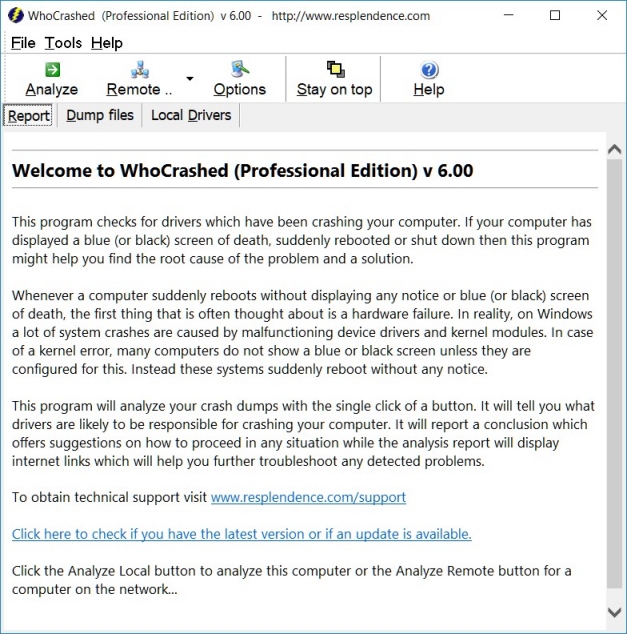
Launch the application on the system where the BSOD appears, download,if asked, the Debugging Symbols from Microsoft and click the “Analyze” button, after some time the app will show you the info about the most suspect dll/driver, here is an example from the SW web site:
Upgrade/Disable/Uninstall it and… the BSOD will disappear.
The hard way – if you need to know the details
Install the “Debugging Tools for Windows” debugger, configure the Symbols Path with the right string, for example:
SRV*c:\websymbols*http://msdl.microsoft.com/download/symbols

Use the “File—>Open Crash Dump” option and load the dump from “%SYSTEMROOT%\minidump”

At the first load you can see this message:
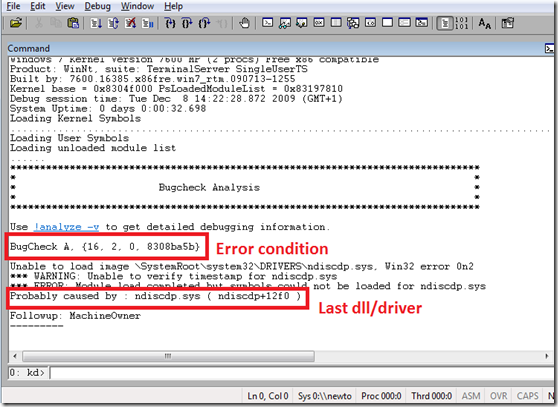
Execute the !analyze –v command, the debugger will analyze the call stack:

Click on the module name link and you will see the path and the details of the faulting module:

Identify the DLL vendor and update his application or uninstall/disable it if no updates are available, the BSOD should disappear from your system.
Hope it helps!
UPDATE #1
How to disable a BSOD driver from windows start
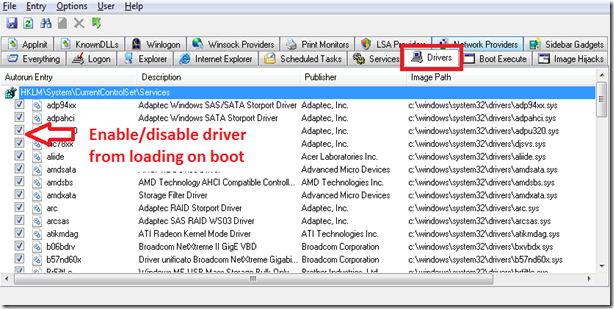
If the BSOD is caused by a driver you need to disable it from loading on windows boot.
Download from sysinternals site the AutoRuns program, execute it and open the Drivers Tab:


 Posts
Posts


